Publish, History, and rollback
Publishing makes a selected App configuration the default version used by your shortcode. Saving a draft is not publishing.
Publish current work
Section titled “Publish current work”- Select the intended draft in Versions.
- Test the preview and relevant responsive layouts.
- Click Publish in the toolbar or the draft’s Publish action.
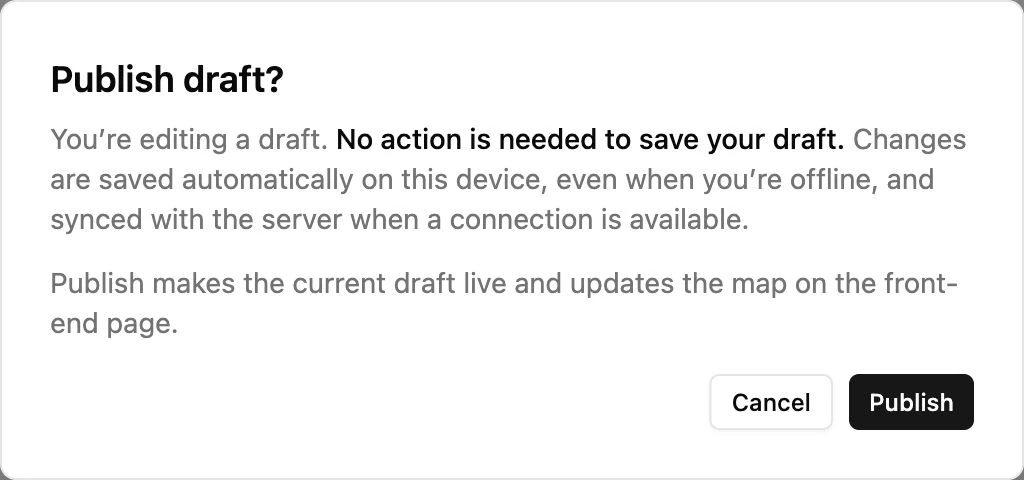
- Review and confirm the publication dialog.
- Verify the actual WordPress page.
The published configuration is an immutable snapshot. Continue editing through a draft rather than treating the published snapshot as a live editor buffer.
One current Published version
Section titled “One current Published version”Versions shows one Published version. Older publications appear in History. They retain version numbers and can still be addressed explicitly by shortcode.
A version badge identifies the publication; its title is a readable label. Using Rename on a version changes that label, not the configuration saved in its snapshot.
Roll back configuration
Section titled “Roll back configuration”Open History, identify the version you want, and use Publish to make it the current publication again. Check the frontend after confirming.
If you want to modify the old version first, use Branch in new draft. Edit and test that draft, then publish it. This keeps your current draft independent of the historical baseline.
Unpublish
Section titled “Unpublish”The Unpublish action removes the current default publication. An unversioned shortcode then shows no map until a version is published again. Use it only when that is the intended outcome.
What rollback does not restore
Section titled “What rollback does not restore”History snapshots do not freeze shared Collection records, Collection field definitions, or Query definitions. Restoring last week’s App may still show today’s data. Back up shared data separately.
Historical shortcodes are useful for comparing a previous design, but they are not a database backup. See Embedding for version-specific examples and Offline/conflicts before publishing from a stale draft.