Editor overview
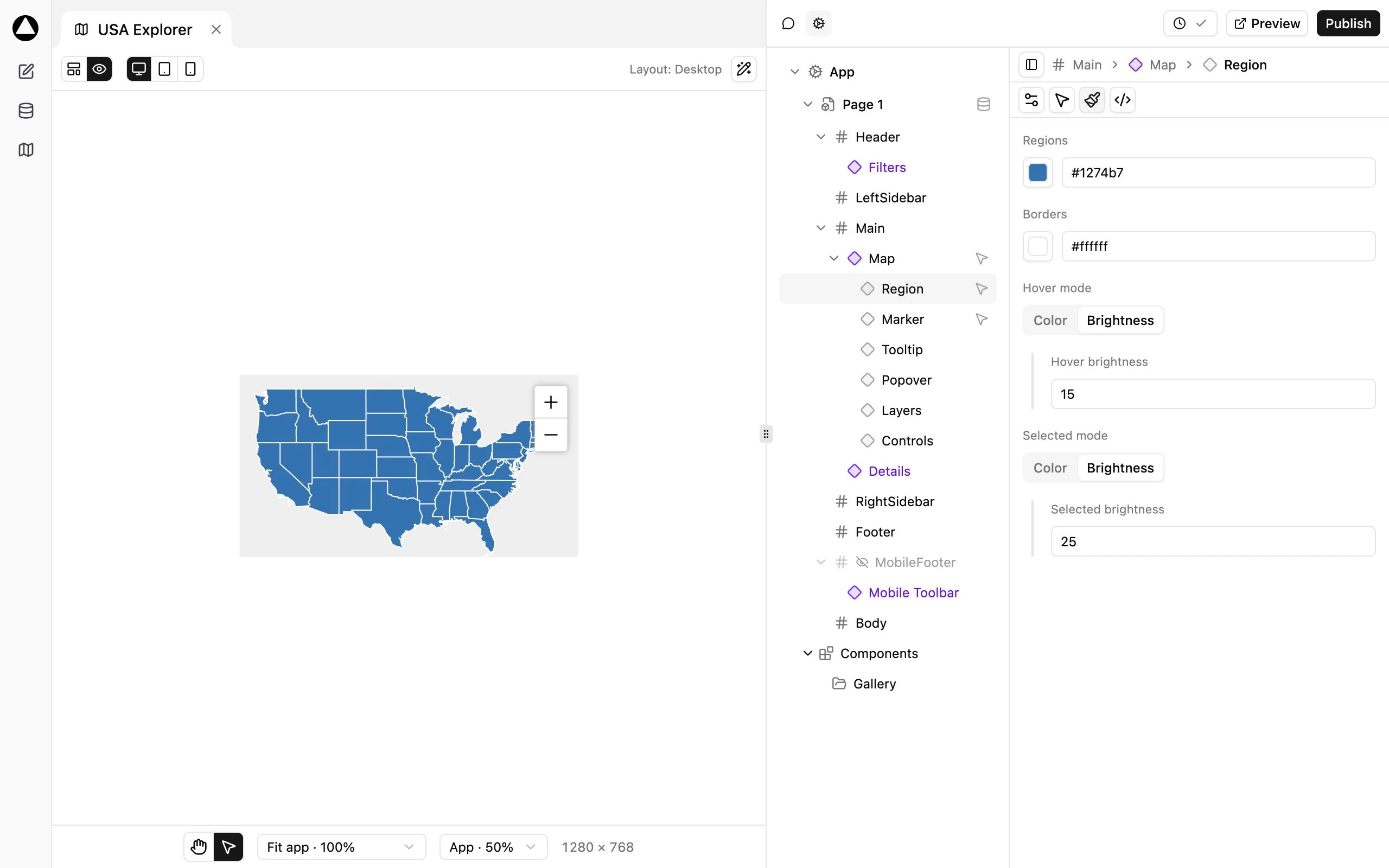
Open an App from the map list. Its workspace has a preview on the left and an inspector on the right. Drag the central separator to give either side more room.
Main navigation
Section titled “Main navigation”- New chat opens the start surface.
- Database opens the global Collections and Queries workspace.
- Maps and the map rows let you return to your Apps.
- Settings opens installation-wide configuration without replacing the current workspace.
Open workspace tabs retain your place while you switch between maps and Database. Closing a tab is not deleting the App. Use the map row’s Map actions menu for Rename, Duplicate, Copy shortcode, or Delete. Duplicate copies the saved map; publish or otherwise preserve the intended configuration before relying on a duplicate.
Preview and Layout
Section titled “Preview and Layout”Preview lets you interact with the App. Layout exposes its responsive container arrangement. Both use the same live map, device choices, and canvas. The Hand / Arrow controls determine whether the mouse manipulates the canvas or the content.
The Draw shortcut opens the SVG editor. It changes the drawing itself, while Layout changes where App components are placed.
Inspector
Section titled “Inspector”Use App in the top-right panel selector to show the component tree. Select App for application-wide settings, Page for data bindings, or a component for its controls. The breadcrumb follows the selected item’s hierarchy; ancestor entries navigate to their settings.
The component toolbar offers Settings, Interactions, Styles, and Code. Availability depends on the selected item and installed modules.
Publishing controls
Section titled “Publishing controls”Versions opens drafts and version history. Preview opens the current draft on a separate frontend preview page. Publish changes the live configuration after confirmation. Saving status describes draft synchronization, not whether the current draft matches Published.