Templates and record context
Templates turn Region and Object data into HTML for tooltips, popovers, Directory rows, labels, and Details View. A template combines ordinary HTML with Handlebars expressions: {{title}} inserts a field from the current record. You can change both the structure and the content of a view without changing the stored record.
This guide carries forward the template features documented in v8, with instructions for the v9 editor. For related code, see JavaScript and CSS.
Open a template
Section titled “Open a template”- Open the App panel and select the component that owns the content.
- Open Code.
- Open the source picker and choose an entry under Templates.
- Choose that source’s CSS or JS entry when you need styling or behavior.
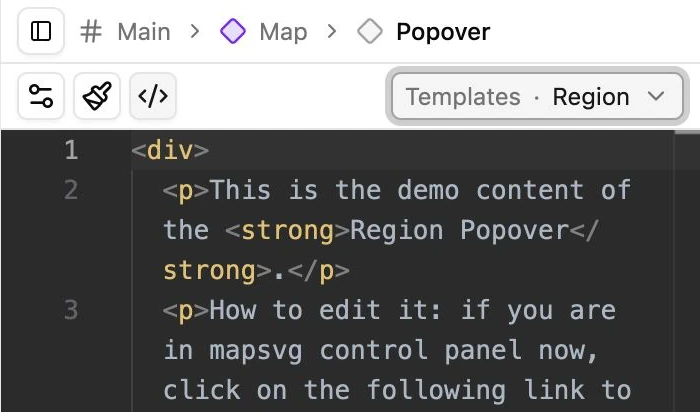
The picker shows all available groups together. Each source keeps its own text and Undo history. Changing the selected source does not copy its contents into another template. Custom code editing requires the Code editor module and appropriate permissions; available presets can still be useful without custom editing.
Select the correct record context. A Region template reads a Region and its attached Objects; an Object/Marker template reads an Object and its linked Regions. A field must be present in the data returned by the Page’s Query before a template can display it. Adding an expression does not create a field or fetch an omitted one.
How a template becomes HTML
Section titled “How a template becomes HTML”Suppose an Object provides this data:
{ "id": 1, "title": "My city", "description": "Lorem ipsum", "location": { "geoPoint": { "lat": 40.7128, "lng": -74.006 }, "address": { "formatted": "1 Main St., New York, USA" } }}In an Object Popover template, write:
<h2>{{title}}</h2><p>{{description}}</p><p><i>Address: {{location.address.formatted}}</i></p>Handlebars replaces the expressions with that Object’s values:
<h2>My city</h2><p>Lorem ipsum</p><p><i>Address: 1 Main St., New York, USA</i></p>Visitors see a heading, a paragraph, and an italic address—not the braces or the field names. Dot-separated paths read nested properties, such as location.address.formatted.
Conditions
Section titled “Conditions”if and else
Section titled “if and else”Show different content depending on whether a value is present/truthy:
{{#if title}} <h3>{{title}}</h3>{{else}} <h3>The title is empty!</h3>{{/if}}Handlebars treats values such as an empty string, false, an empty array, and normally 0 as false. For a numeric field where zero is meaningful, use {{#if coverage includeZero=true}} rather than assuming zero is missing.
unless
Section titled “unless”unless is the inverse condition:
{{#unless title}} The title is empty!{{/unless}}ifeq and ifnoteq
Section titled “ifeq and ifnoteq”MapSVG supplies helpers for equality and inequality:
{{#ifeq title "Hello"}}  The title is "Hello"!{{else}}  The title is something else.{{/ifeq}}
{{#ifnoteq title "Hello"}}  The title is not "Hello"!{{/ifnoteq}}
These helpers use JavaScript’s loose equality comparisons, so 1 and "1" compare equal. This differs from the strict matching used by switch/case below.
Lists and related records
Section titled “Lists and related records”Access an item by index
Section titled “Access an item by index”Array positions start at zero. In a Region template, attached Objects are available as objects:
{{objects.0.my_field}}{{objects.1.my_field}}{{objects.1.title}}The first expression reads my_field from the first Object; the others read from the second. A fixed index only makes sense when that item exists and its position is meaningful.
each: Objects attached to a Region
Section titled “each: Objects attached to a Region”Use a loop when the number of related Objects can vary:
{{#each objects}} <article> <p>Object's custom field: {{my_field}}</p> <h3>{{title}}</h3> <p>{{location.address.formatted}}</p> </article>{{else}} <p>No Objects are attached to this Region.</p>{{/each}}Inside each, field names refer to the current Object. ../title accesses the parent context’s title when needed. Related Objects must be available to the current App; the loop does not perform a separate database query.
each: Regions attached to an Object
Section titled “each: Regions attached to an Object”In an Object template, loop over its Region links:
{{#each regions}} <p>Region title: {{title}}; status: {{status}}</p>{{/each}}A relation may contain only an ID and title. The status expression displays a value only if that property is actually included in the relation data. Do not assume a Region link contains every field of the full Region record.
Change context with “with”
Section titled “Change context with “with””with temporarily makes a nested object the current context. For this data:
{ "person": { "firstname": "Yehuda", "lastname": "Katz" }}Use:
{{#with person}} {{firstname}} {{lastname}}{{/with}}The result is Yehuda Katz. Within the block, use the nested object’s fields directly. An else block handles missing/empty data:
{{#with city}} {{name}}{{else}} No city found{{/with}}Here {{name}} reads city.name; writing {{city.name}} inside the block would look for another city inside the current one.
Choose content with switch/case
Section titled “Choose content with switch/case”MapSVG’s switch, case, and default helpers select content by value:
{{#switch status}} {{#case "1" break=true}} Status is "Available" {{/case}} {{#case "2" break=true}} Status is "Sold" {{/case}} {{#default}} Unknown status {{/default}}{{/switch}}Match the field’s actual value type. The example uses string values "1" and "2"; use {{#case 1 break=true}} for a numeric 1. break=true stops subsequent cases from contributing content. Keep it when you want exactly one matching result.
Render different field types
Section titled “Render different field types”Text and textarea
Section titled “Text and textarea”Use the field name:
<h3>{{title}}</h3><p>{{description}}</p>Double braces escape HTML. A text value containing <strong>Hello</strong> is displayed as text rather than interpreted as markup.
HTML textarea
Section titled “HTML textarea”For a textarea intentionally containing HTML, including one configured for HTML editing, use three braces:
{{{my_textarea_with_html}}}Triple braces render the value as markup. They do not sanitize it. Use them for content you intend to render as HTML, rather than arbitrary imported text. Ordinary text fields should normally keep double braces.
Select, radio, and status: value versus label
Section titled “Select, radio, and status: value versus label”An option has a stored value and a readable label. Values do not have to be numbers. For example:
Available: 1Sold: 2Disabled: 3Display the stored value:
{{my_field}}Display its label:
{{my_field_text}}For a field named status, the corresponding label is {{status_text}}. MapSVG derives these _text properties from the field definition. Keep that field available in the Query result and its schema.
Multiselect
Section titled “Multiselect”A multiselect is an array of selected label/value pairs:
{ "my_multiselect_field": [ { "label": "Option one", "value": 1 }, { "label": "Option two", "value": 2 } ]}Show all selected options, separated by commas:
{{#each my_multiselect_field}}{{label}} - {{value}}{{#unless @last}}, {{/unless}}{{/each}}@last is true for the last item, so the result has no trailing comma.
Images
Section titled “Images”An Images field contains an array, even when it has only one image. Each item provides image-size URLs:
{ "images": [ { "thumbnail": "/uploads/office-thumb.jpg", "medium": "/uploads/office-medium.jpg", "full": "/uploads/office.jpg" }, { "thumbnail": "/uploads/entrance-thumb.jpg", "medium": "/uploads/entrance-medium.jpg", "full": "/uploads/entrance.jpg" } ]}A URL alone is text. Put it in an HTML image element to display the image. To show every image at each available size:
{{#each images}} <img src="{{thumbnail}}" alt="Thumbnail" /> <img src="{{medium}}" alt="Medium image" /> <img src="{{full}}" alt="Full image" />{{/each}}Ordinarily choose one size per image rather than displaying all three. To show only the first full-size image:
{{#if images.0.full}} <img src="{{images.0.full}}" alt="{{title}}" />{{/if}}Index 0 is the first image, 1 the second. Replace images if your field has a different name. For sliders, lightboxes, and reusable image presentation, use Gallery presets and Copy template tag with the correct field path.
Format numbers
Section titled “Format numbers”These helpers change the displayed output, not the value stored in the Collection.
Round to an integer with “round”
Section titled “Round to an integer with “round””round returns the nearest integer:
{{round 12.6}}{{round 12.4}}The results are 13 and 12. To round a field value, pass its name:
{{round totalAmount}}This helper follows JavaScript’s Math.round: exact halves round toward positive infinity, so {{round -2.5}} produces -2. It does not accept a decimal-place option or add thousands separators. Use numberFormat for formatted decimal output.
Format decimals and separators with “numberFormat”
Section titled “Format decimals and separators with “numberFormat””numberFormat returns a formatted string, with a fixed number of decimal places and configurable separators:
{{numberFormat 1234567.89}}The default result is 1 234 567.89.
Available named parameters:
- decimalLength: decimal places; default
2. - thousandsSep: separator between groups of three digits; default a space (
" "). - decimalSep: separator before the fractional part; default a period (
".").
Use comma-separated thousands and a decimal point:
{{numberFormat 1234567.89 decimalLength=2 thousandsSep="," decimalSep="."}}Result: 1,234,567.89.
Use period-separated thousands and a decimal comma:
{{numberFormat 1234567.89 decimalLength=2 thousandsSep="." decimalSep=","}}Result: 1.234.567,89. The separators are explicitly configured; they are not chosen automatically from the visitor’s locale.
Choose three decimal places:
{{numberFormat 12.3456 decimalLength=3}}Result: 12.346. Extra decimal places are rounded, and missing places are padded with zeros. For a field, replace the literal number with its name:
{{numberFormat totalAmount decimalLength=2 thousandsSep="," decimalSep="."}}Pass a number or a numeric string using a period for its input decimal separator. The output separator options do not make the helper parse an already localized number such as "1.234,56".
Show an integer
Section titled “Show an integer”Set decimalLength=0 to round to an integer and omit the decimal separator:
{{numberFormat 1234.56 decimalLength=0}}Result: 1 235. Thousands grouping still applies. To omit grouping as well:
{{numberFormat 1234.56 decimalLength=0 thousandsSep=""}}Result: 1235.
Use empty separators
Section titled “Use empty separators”An empty thousandsSep disables thousands grouping while preserving decimal places:
{{numberFormat 1234.56 thousandsSep=""}}Result: 1234.56.
An empty decimalSep removes the separator character, not the fractional digits:
{{numberFormat 1234.56 decimalSep=""}}Result: 1 23456. Only integer digits are grouped. Use decimalLength=0 when you want to remove the fractional part instead.
Both separators can be empty:
{{numberFormat 1234.56 thousandsSep="" decimalSep=""}}Result: 123456. The default two fractional digits remain, with no separator before them.
Defaults apply only when a parameter is omitted or null. Explicit 0 precision and empty separator strings are respected.
WordPress Post fields
Section titled “WordPress Post fields”These expressions require a Post field or a WordPress source that supplies an enriched post object. See WordPress posts for source setup.
Render a post in an iframe
Section titled “Render a post in an iframe”MapSVG’s post helper embeds the current linked post:
{{post}}This produces an iframe, rather than the string representation of the post object. Its content is separate from the surrounding template.
Read individual post properties
Section titled “Read individual post properties”<p>Post ID: {{post.id}}</p><p>Post URL: {{post.url}}</p><h3>{{post.post_title}}</h3><div>{{{post.post_content}}}</div>Use {{post.post_content}} when you intentionally want escaped text; use three braces for the prepared HTML content. Rendering individual properties does not create an iframe.
Link to the original post:
<a href="{{post.url}}">{{post.post_title}}</a>Featured image
Section titled “Featured image”post.image is the full-size featured-image URL:
{{#if post.image}} <img src="{{post.image}}" alt="{{post.post_title}}" />{{/if}}Other sizes are available through:
{{post.images.thumbnail}}{{post.images.medium}}{{post.images.large}}{{post.images.full}}These expressions return URLs, so use them in src attributes to show images. Missing featured images need a conditional or fallback.
Advanced Custom Fields
Section titled “Advanced Custom Fields”When ACF is installed and its fields are included in the enriched post, read them through post.acf:
{{post.acf.my_field_name}}{{post.acf.my_another_field}}An ACF repeater is an array. Loop over it and use the subfield names inside the loop:
{{#each post.acf.my_repeater_field}} <p>Subfield 1: {{sub_field_1}}</p> <p>Subfield 2: {{sub_field_2}}</p>{{/each}}ACF return-format settings determine whether a subfield contains text, a URL, an ID, an object, or an array. Adjust the template to the actual returned shape.
Location and address
Section titled “Location and address”Only Objects have Location fields; Regions are positioned by SVG geometry. A current runtime Location can provide:
{ "location": { "geoPoint": { "lat": 29.7604, "lng": -95.3698 }, "address": { "formatted": "1 Main St., Houston, TX 77002, USA", "locality": "Houston", "state_short": "TX", "state": "Texas", "country_short": "US", "country": "United States", "zip": "77002" } }}Address properties depend on the geocoder and stored data. Some records instead provide address_formatted, postal_code, and administrative_area_level_1 / administrative_area_level_1_short. Older serialized/imported Locations may use lat and lng directly; current runtime template data uses geoPoint.lat and geoPoint.lng.
Read the fields that exist in your records:
{{location.address.formatted}}{{location.address.locality}}{{location.address.zip}}{{location.geoPoint.lat}}, {{location.geoPoint.lng}}The v8 example also used {{location.address.city}}. Keep that expression only for a source that actually returns city; it is not a guaranteed alias for locality. For mixed address formats, provide a fallback:
{{#if location.address.formatted}} {{location.address.formatted}}{{else}} {{location.address.address_formatted}}{{/if}}Distance from the visitor’s search address
Section titled “Distance from the visitor’s search address”When a visitor uses an address/distance filter, show the distance from that search origin to an Object’s Location:
{{distanceTo location}}The equivalent helper is:
{{distanceFrom location}}location is the name of the Object field containing coordinates; replace it if your Location field has another name. Both helpers calculate straight-line distance, format it to two decimal places, and append the active units. They are not a driving-distance or routing service.
Configure kilometers or miles in Filters → Settings → Edit form, select the address/distance control, and set its units. This replaces the v8 Menu → Filters → Edit fields path. Without an active distance search, the helpers return empty text. A geographic Location is required; SVG-only x/y coordinates are insufficient.
The expression is commonly used in a Directory item, but can also appear in an Object Popover or Details template with Location in its context. For the current Details action limitation, use the Popover route when testing.
WordPress shortcodes inside templates
Section titled “WordPress shortcodes inside templates”Shortcode helpers ask WordPress to render a shortcode. The corresponding plugin must be active, and the shortcode must be allowed by MapSVG’s installation settings. A shortcode’s presence in a template does not bypass that setting for public visitors.
Embed rendered content in an iframe
Section titled “Embed rendered content in an iframe”{{shortcode '[my_shortcode id="1"]'}}This creates an iframe with a separate document. It is useful when the embedded plugin needs its own page assets and styles. The standalone shortcode page normally omits the theme header/footer.
Insert an inline fragment
Section titled “Insert an inline fragment”For plain text or content that can render without an isolated page:
{{shortcode_inline '[my_shortcode id="1"]'}}The helper inserts a placeholder and replaces it with an asynchronously fetched HTML fragment. It does not create an iframe. Do not assume that a third-party widget’s scripts and styles will be loaded or initialized as they would on a full WordPress page; use the iframe helper for that case.
Read a shortcode from a field
Section titled “Read a shortcode from a field”{{#if shortcode_field_name}} {{shortcode shortcode_field_name}}{{/if}}The field must contain the full shortcode string, such as [my_shortcode id="1"]. The same allowlist applies.
Pass record values into shortcode attributes
Section titled “Pass record values into shortcode attributes”MapSVG resolves nested placeholders in the quoted shortcode string against the current template context:
{{shortcode '[contact-form-7 id="1" region-title="{{title}}"]'}}In a Region template, this passes the clicked Region’s title to Contact Form 7. In an Object template, title is the Object title. Use the appropriate nested path when the value is inside a related record.
In the Contact Form 7 form definition, allow that field’s default to come from the shortcode attribute:
[text* region-title default:shortcode_attr]The field name must match region-title, and the form ID must identify your actual form. Add contact-form-7 to MapSVG’s allowed shortcodes when enabling this public embed. Test titles containing quotes and other special characters with the receiving plugin; placeholder substitution is not a general-purpose attribute-escaping system.
Directory sources and template behavior
Section titled “Directory sources and template behavior”Directory exposes three separate sources: directory for the overall view, directoryItem for one row, and categoryItem for a category heading (stored as directoryCategoryItem). Choose the row source when changing the appearance of each record. Configure the grouping field separately in Directory settings.
A template can have associated CSS and an afterRender script. Those sources belong to the selected template; template JavaScript receives { el, map, controller } rather than a Map event object. See template JavaScript and CSS scope.
Test several records, including missing optional values, multiple related records, empty lists, and HTML content. Use Arrow in the canvas or Preview on a separate frontend page. Publish the draft only after checking the intended result.