Google Sheets
Use a published Google Sheet as a remote CSV URL. MapSVG can periodically re-fetch the sheet so the map stays in sync without re-uploading files.
Setup
- In Google Sheets: File › Share › Publish to web › CSV and copy the URL
- In the map editor: Database › CSV import
- Choose Remote URL / Google Sheets and paste the URL
- Click Sync fields, configure ID column and geocoding if needed
- Enable auto-refetch (periodic sync) for remote sources, then Save and Import now
The workflow matches CSV file imports — same field rules, geocoding, and batch processing — but the source stays on Google's servers.
For field formats and import options, see CSV import.
Google Sheets auto-sync
For years, importing data into MapSVG worked through CSV uploads. It was reliable, but there was friction:
- export CSV
- upload file
- manually create missing fields in the database
- repeat everything after every spreadsheet update
That workflow is now gone.
MapSVG now supports Google Sheets auto-sync and remote CSV URLs - turning spreadsheets into a live external data source for your maps, directories, store locators, real estate listings, and more.
From Static CSV Uploads to Live Data
Instead of uploading files manually, you can now simply paste a remote CSV URL.
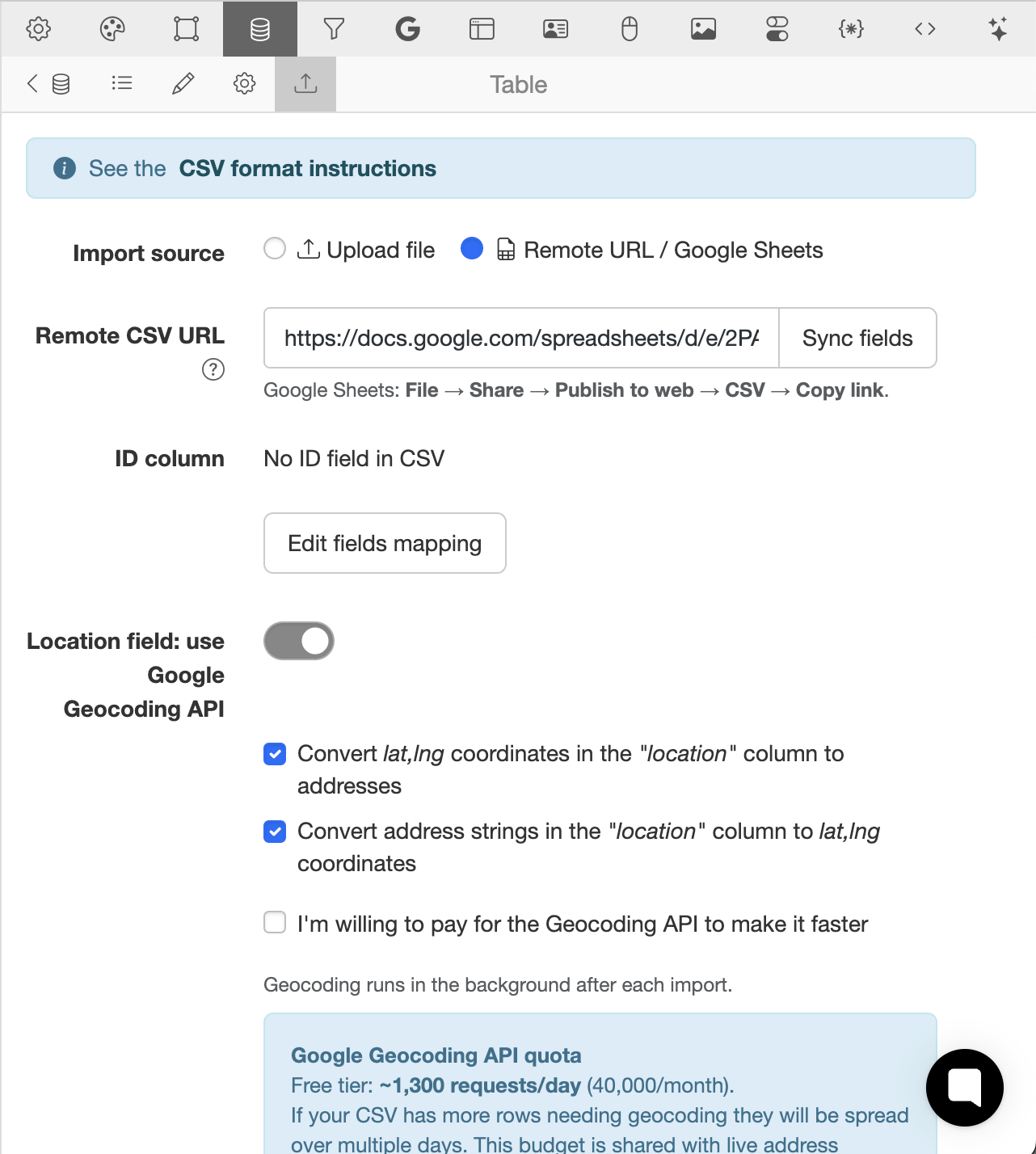
The most common use case is a public Google Sheets CSV link, but any remote CSV file works.
MapSVG will:
- fetch the CSV automatically
- scan all columns
- detect available fields
- let you select the ID field
- optionally create missing database fields automatically
- attempt to auto-detect field types
That means dramatically less setup time and fewer import errors.
Automatic Schema Detection
Previously, users had to manually prepare the database schema before import.
Now MapSVG can build it for you.
During import setup, MapSVG analyzes the CSV structure and suggests field types automatically:
- text
- numbers
- select/dropdown
- dates
- images
- location fields
- and more
You can still adjust everything manually if needed, but most imports now take only a few clicks.
Google Sheets as a Real Database
The biggest improvement is automatic refetching.
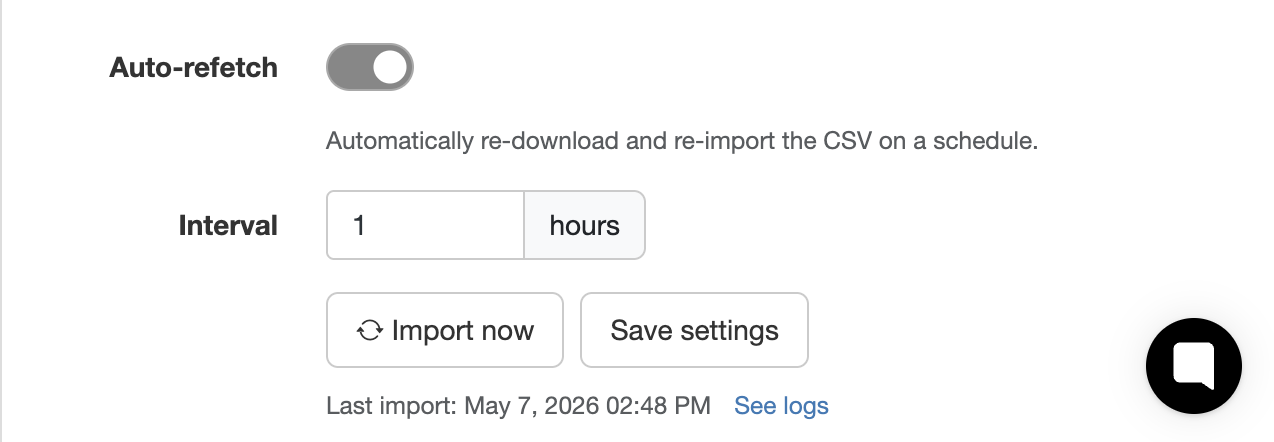
Once connected, MapSVG can periodically re-import the remote CSV in the background. Your Google Sheet effectively becomes the source of truth for your website data.
Update a row in Google Sheets → MapSVG syncs it automatically.
This is especially useful for:
- store locators
- real estate listings
- event schedules
- travel maps
- delivery points
- franchise locations
- team directories
- dynamic datasets managed by non-technical staff
Clients can edit a spreadsheet without touching WordPress admin at all.
Smart Geocoding Integration
If your dataset contains location-related fields, MapSVG can now integrate directly with the Google Geocoding API.
You can:
- convert addresses into coordinates
- convert coordinates into readable addresses
- enrich incomplete datasets automatically
And because geocoding costs money after the free quota, MapSVG includes smart rate limiting options.
You can choose between:
- staying safely under Google's free daily quota (~1300 requests/day)
- or using aggressive processing speed for large imports
This gives you control over both speed and API costs.
Automatic Image Import
Another major improvement: image URLs inside CSV files are now handled automatically.
If your CSV contains image links, MapSVG can:
- download images automatically
- import them into the WordPress Media Library
- attach them to records during import
No more manual media uploads for large datasets.
This is particularly useful for:
- property listings
- product catalogs
- team directories
- tourism guides
- dealer maps
Built for Huge CSV Files
CSV performance has also been completely reworked.
Large imports are now processed in background batches using WP-Cron, making it possible to import extremely large datasets without server timeouts.
Datasets with 100,000+ rows are now supported much more reliably.
Instead of trying to process everything in a single request, MapSVG:
- splits imports into batches
- processes them asynchronously
- reduces memory spikes
- avoids browser timeouts
- keeps the site responsive during imports
This makes MapSVG suitable for much larger enterprise datasets than before.
Typical Workflow
The new workflow is simple:
- Publish a Google Sheet as CSV
- Paste the CSV URL into MapSVG
- Let MapSVG detect columns and schema
- Configure geocoding/import options
- Enable automatic refetching
Done.
Your spreadsheet now powers your map automatically.