Google Maps
Use a Google Map when you want street/satellite tiles as the base layer — for store locators, address search, or any map that needs real-world geography under your markers and shapes.
Under the hood, a “New Google map” in MapSVG is still an SVG map: MapSVG places a high-resolution empty SVG that covers the whole world on top of Google Maps. Clickable Regions and drawing live in that SVG layer; Google provides the imagery underneath.
You can also start from any geo-calibrated SVG map and turn Google Maps on later under Menu › Google Maps in the map editor. Uncalibrated SVG files cannot use Google Maps.
See also: Google Maps options in the map editor.
How to get Google API key
-
If you want to add locations by entering an address. MapSVG sends a request to the Geocoding API to convert the address to lat/lng coordinates
-
If you want to use Google Maps
Please note that you can also add locations manually by clicking on the map, or by entering lat/lng coordinates in the "Location" field, instead of entering an address. In that case, you don't need Google API keys.
How much do I have to pay for Google API?
Google provides $200 free credit every month that you can spend on all of their APIs. This is more than enough for websites with up to about 1000 visitors per day. If you don't exceed the free quota, you won't be charged.
MapSVG needs 2 Google API keys:
- Maps JavaScript API key, which is required for:
- Enabling Google Maps
- Downloading a calibrated SVG file with a Google Map screenshot
- Geocoding API key, which is required for:
- Adding markers by entering an address
- Importing locations (as lat/lon or address) from a CSV file
- Searching for a location on Google Map
Sign in to Google Cloud Console and provide your billing details.
Google Maps API and Geocoding API services will not work if you don't provide your card details to Google.
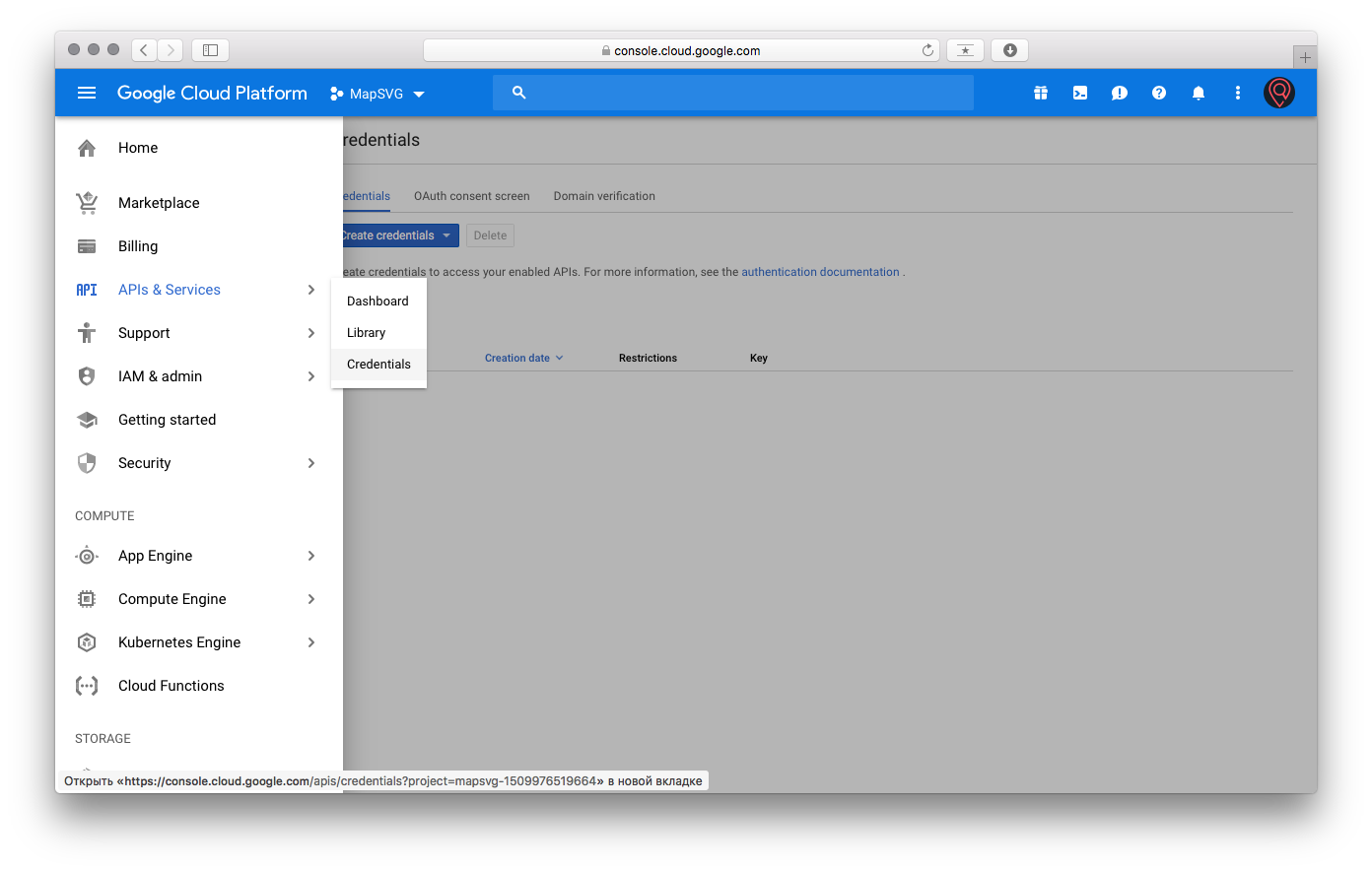
Then click the top-left navigational menu button and go to Menu > API & Services > Credentials:
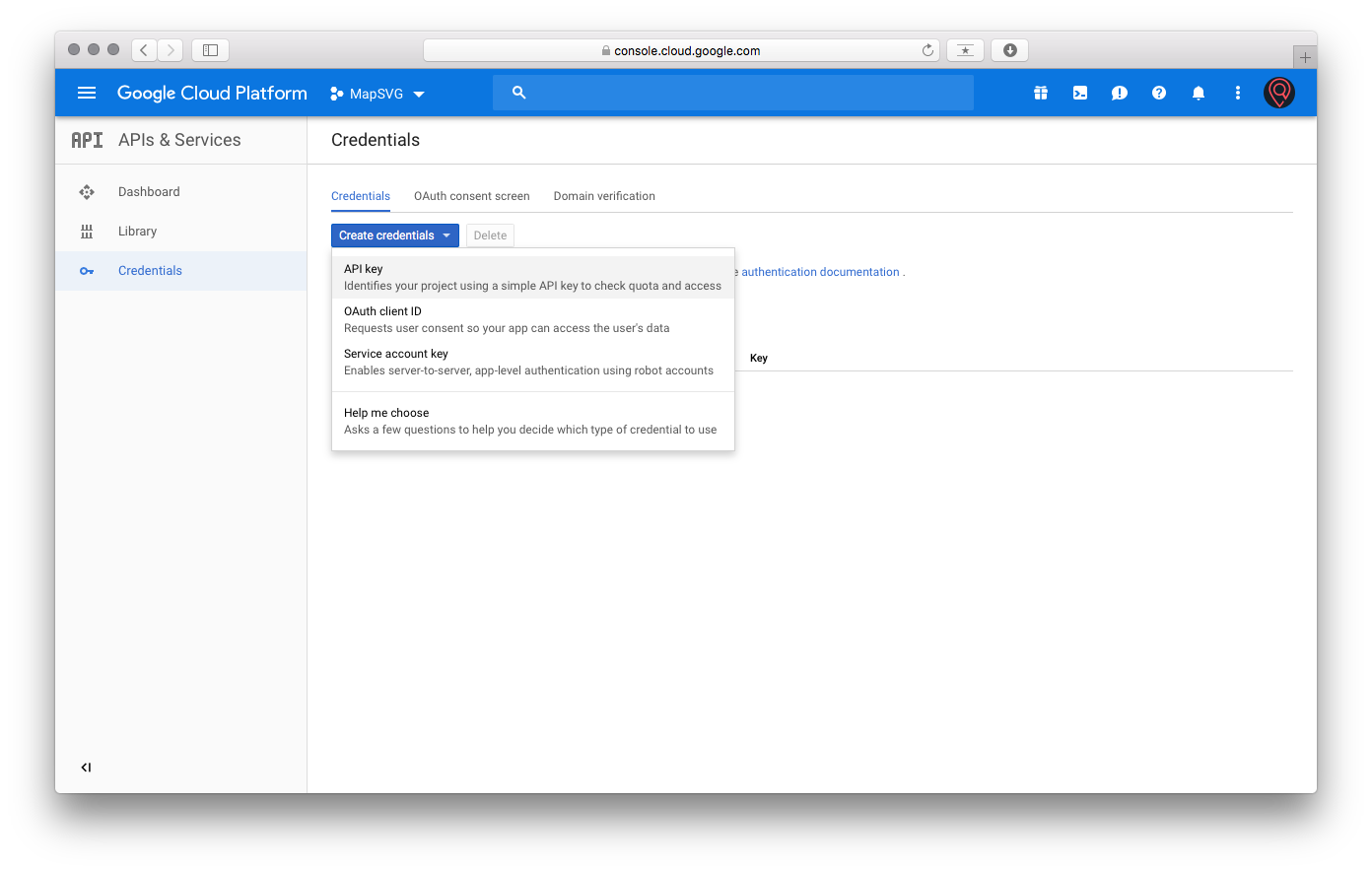
 Click Create credentials > API key:
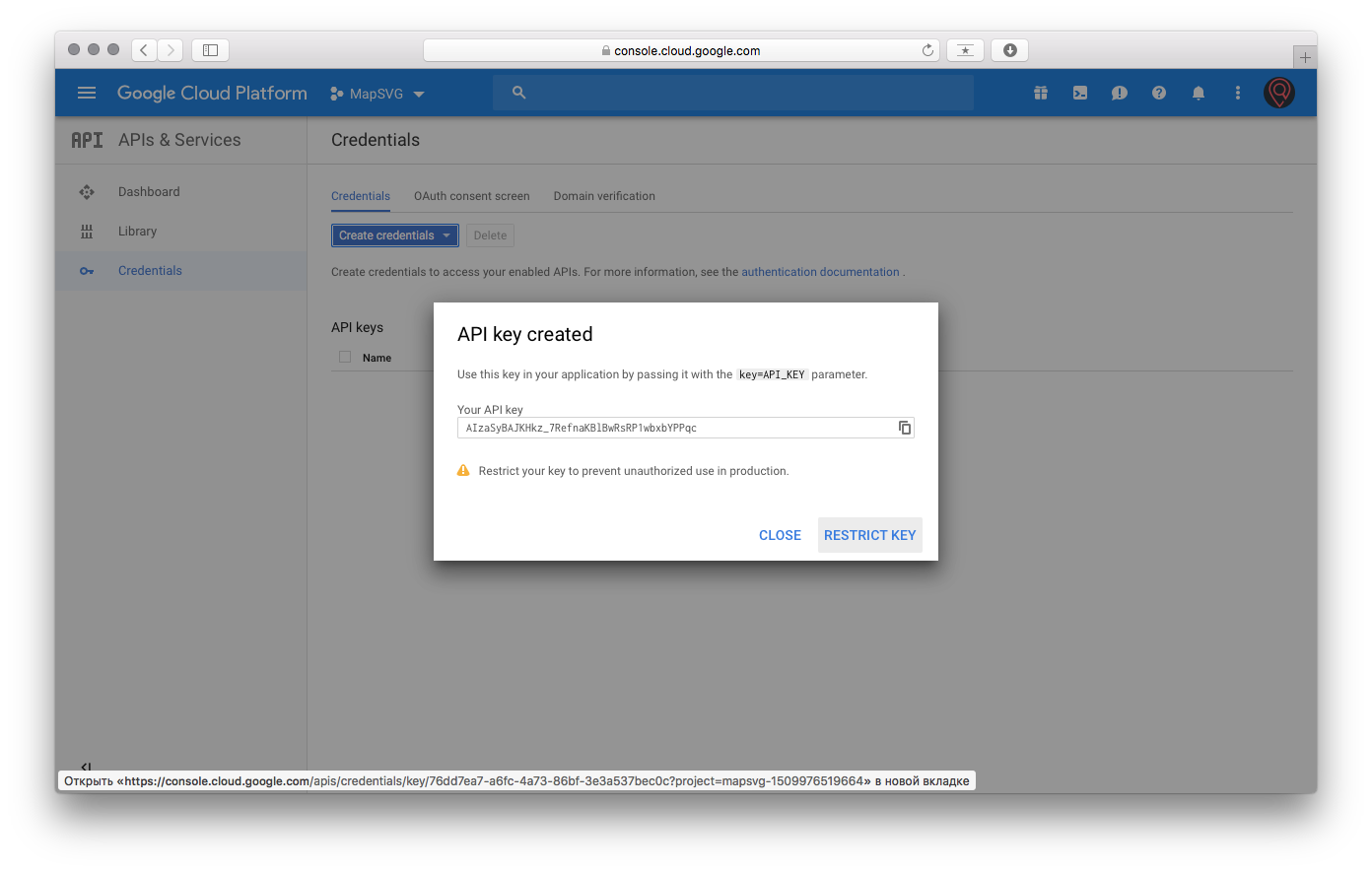
 Click Restrict key:
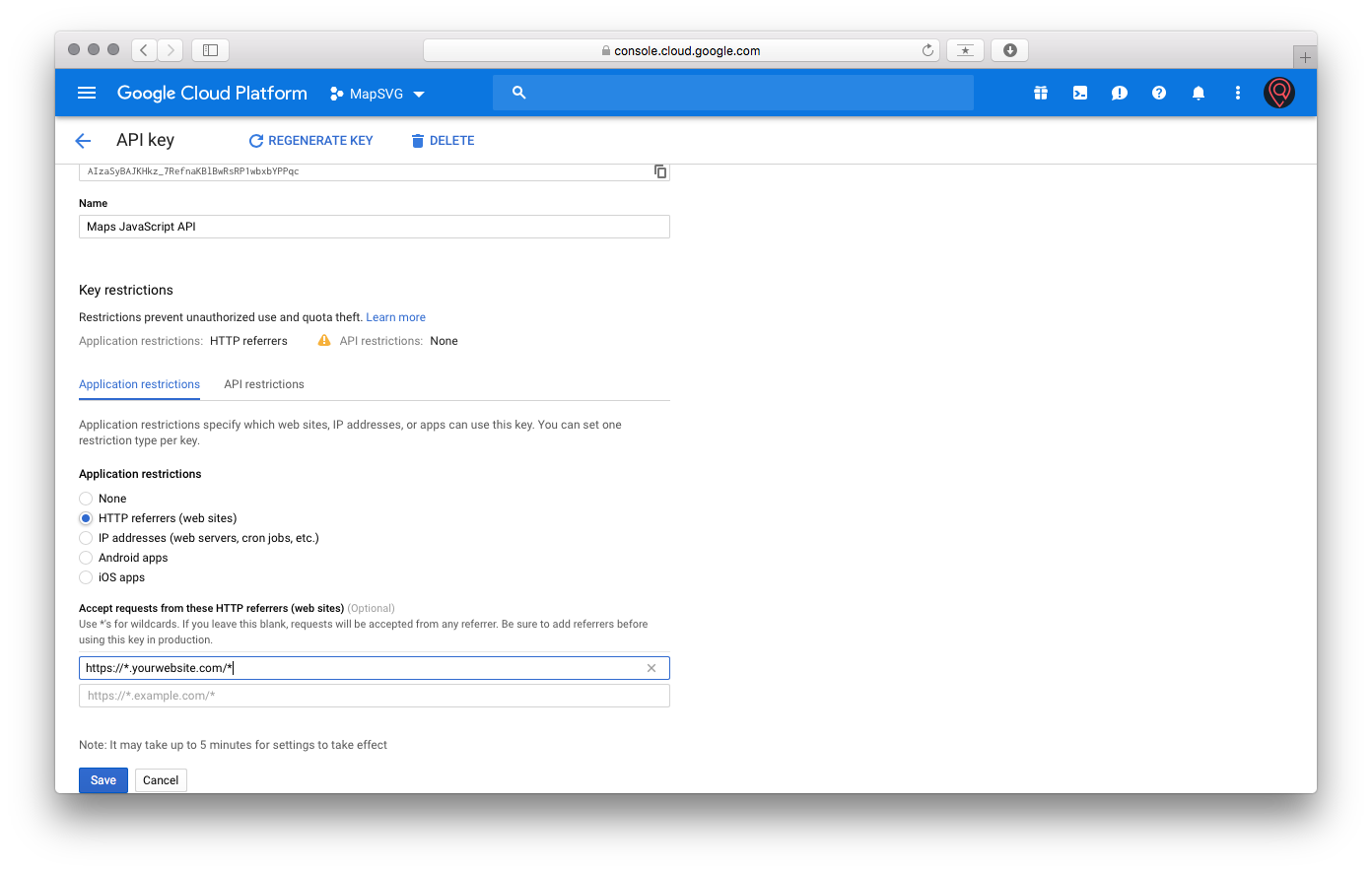
 Change the name of the key to "Maps JavaScript API key".
Select Application Restrictions > HTTP referrers and enter 2 URLs as follows:
https://*.yourwebsite.com/*https://yourwebsite.com/*
If you don't have SSL, begin the URL with http:// and not https://
API restrictions: you can skip this, or, if you want to add this restriction for more security, select 2 APIs:
- Maps API
- Geocoding API.
We have finished with the Maps API key.
Now go back and create one more key; name it "Geocoding API key". This key should be restricted by the IP address of your server. Requests with this key will be made only from the backend (PHP). You can find the IP of your website on this page. Choose Application restrictions > IP addresses and enter your IP address:
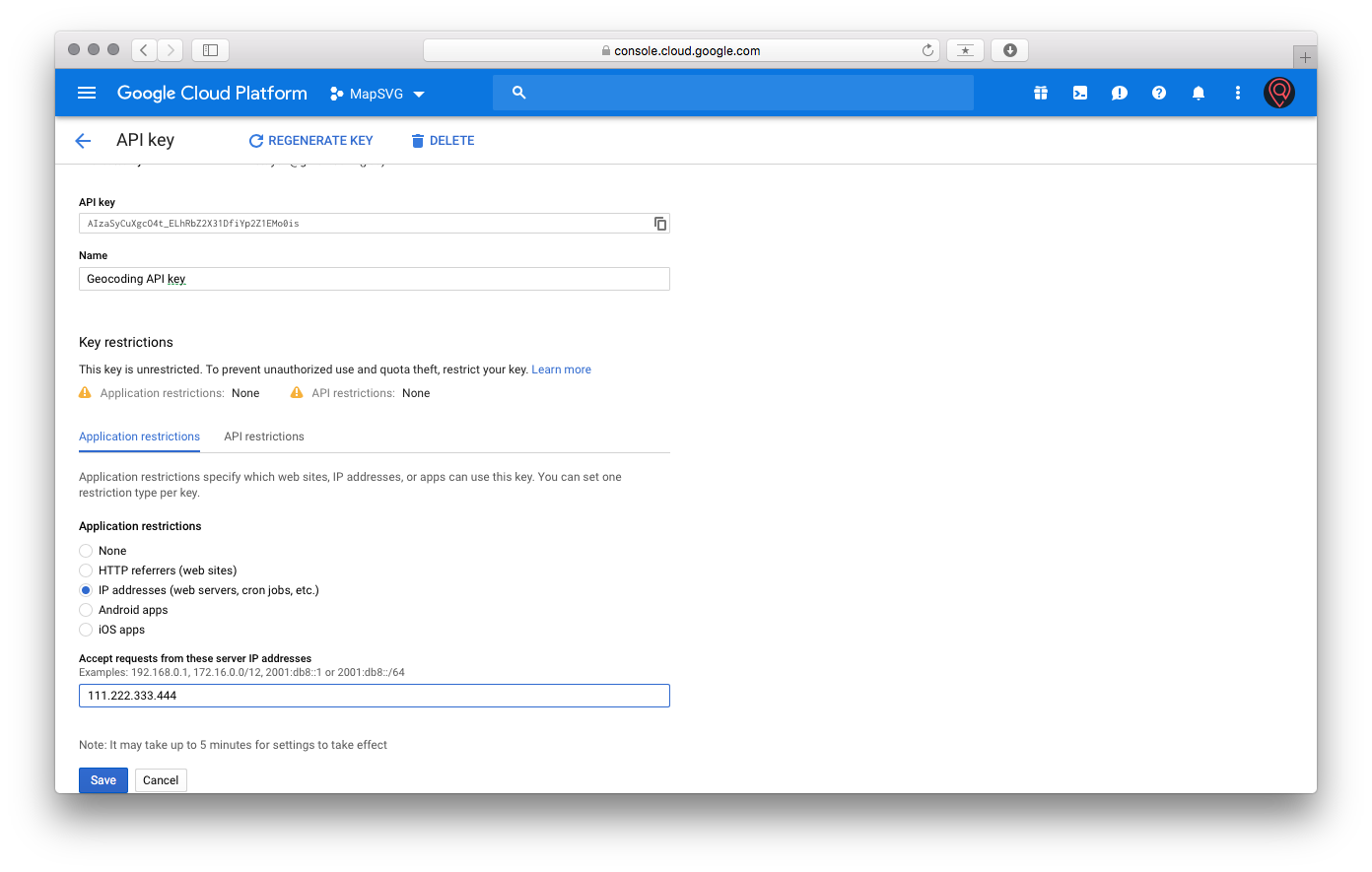
If you get the following error after setting up the Geocoding API key: "This IP, site or mobile application is not authorized to use this API key. Request received from IP address xxx.xxx.xxx.xxx, with empty referer." — then add the IP shown in the error message to the list of IPs for the Geocoding API key.
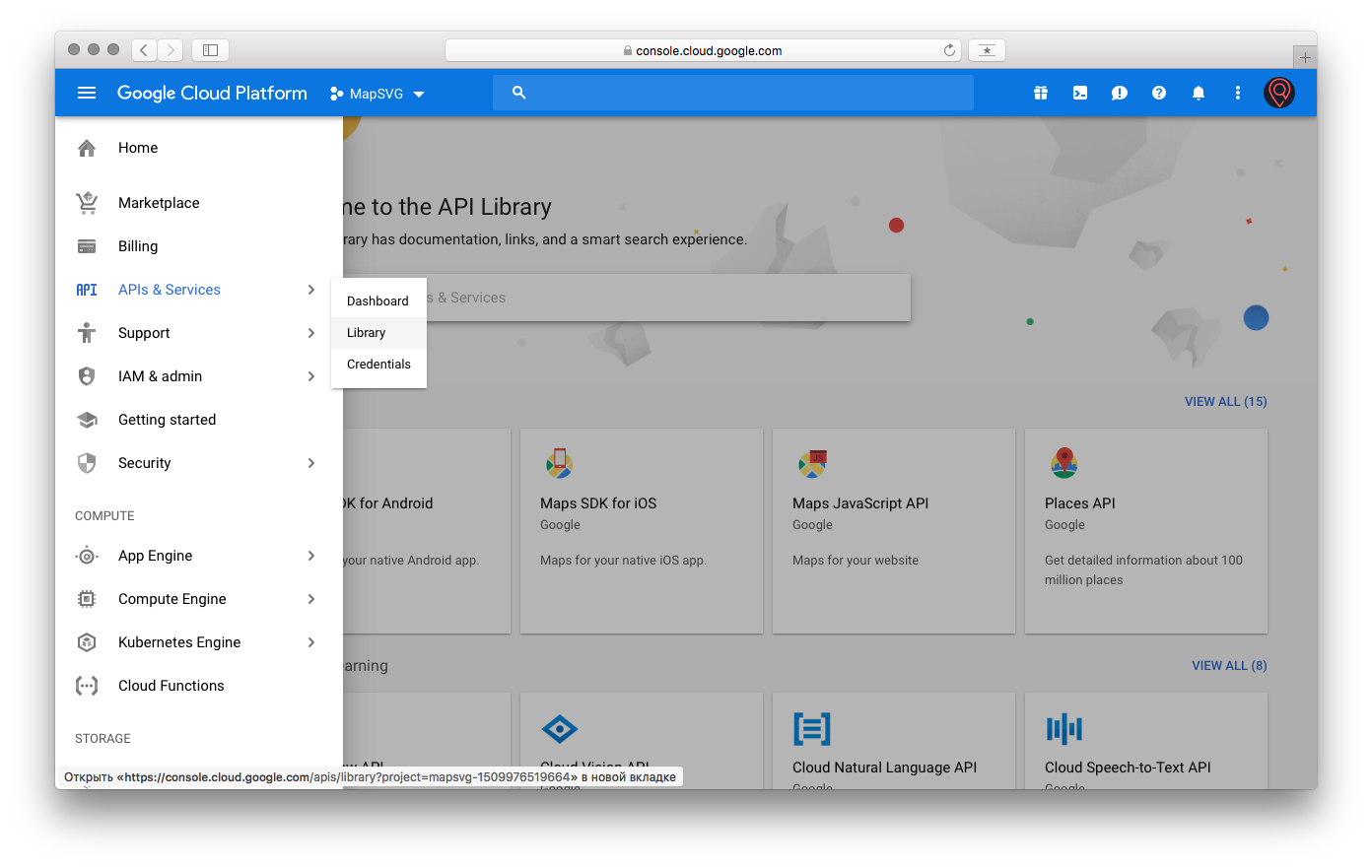
Now you need to enable Maps JavaScript API and Geocoding API for your account. Go to Menu > API & Services > Library:
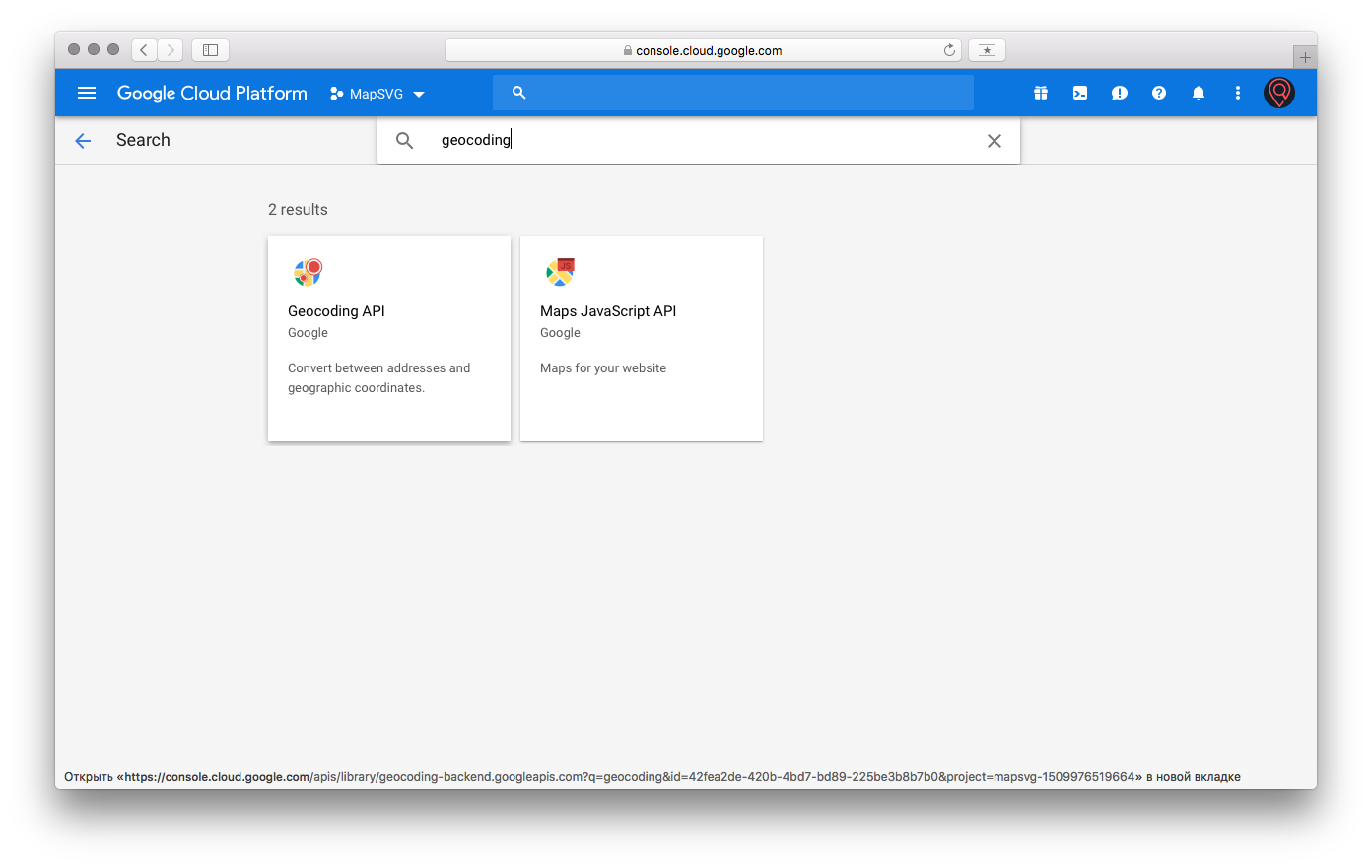
 Enter "Geocoding" in the search bar and click the Geocoding API block:
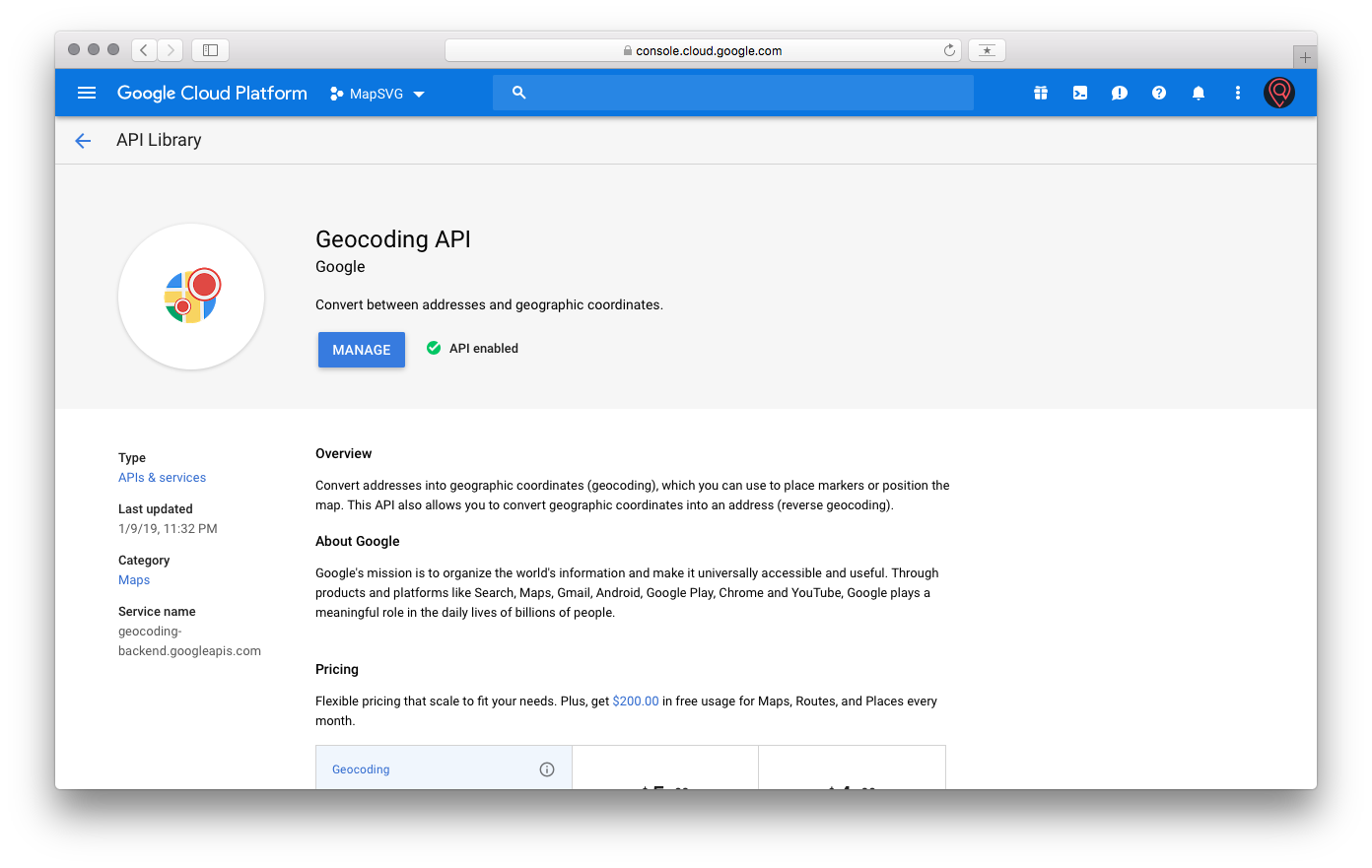
 Click the "Enable" button if the API is not enabled yet:
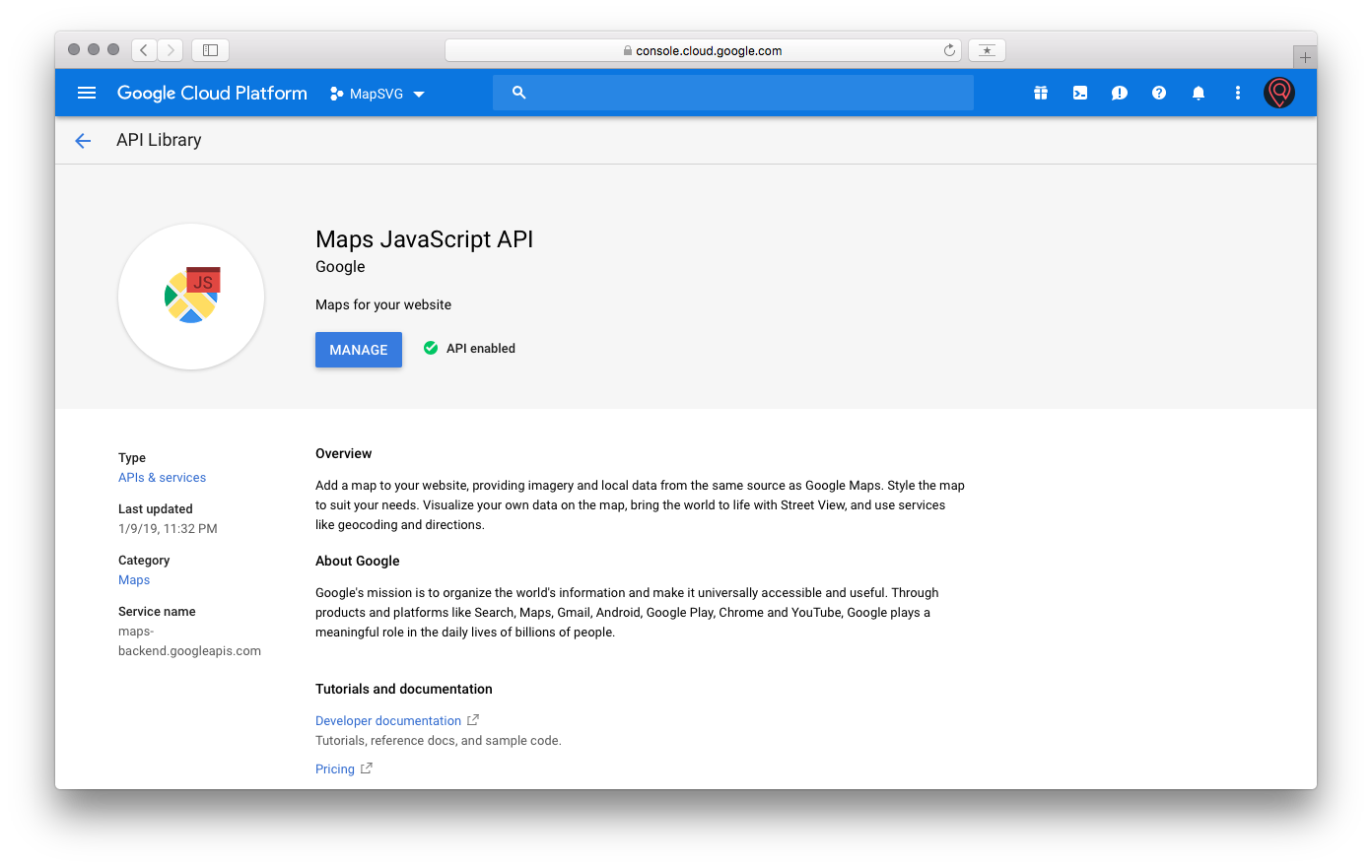
 Go back and enter "Maps Javascript" in the search bar, then click the Maps JavaScript API block. Enable it too:
 Now go to MapSVG, click the Google API keys button, and add both keys:
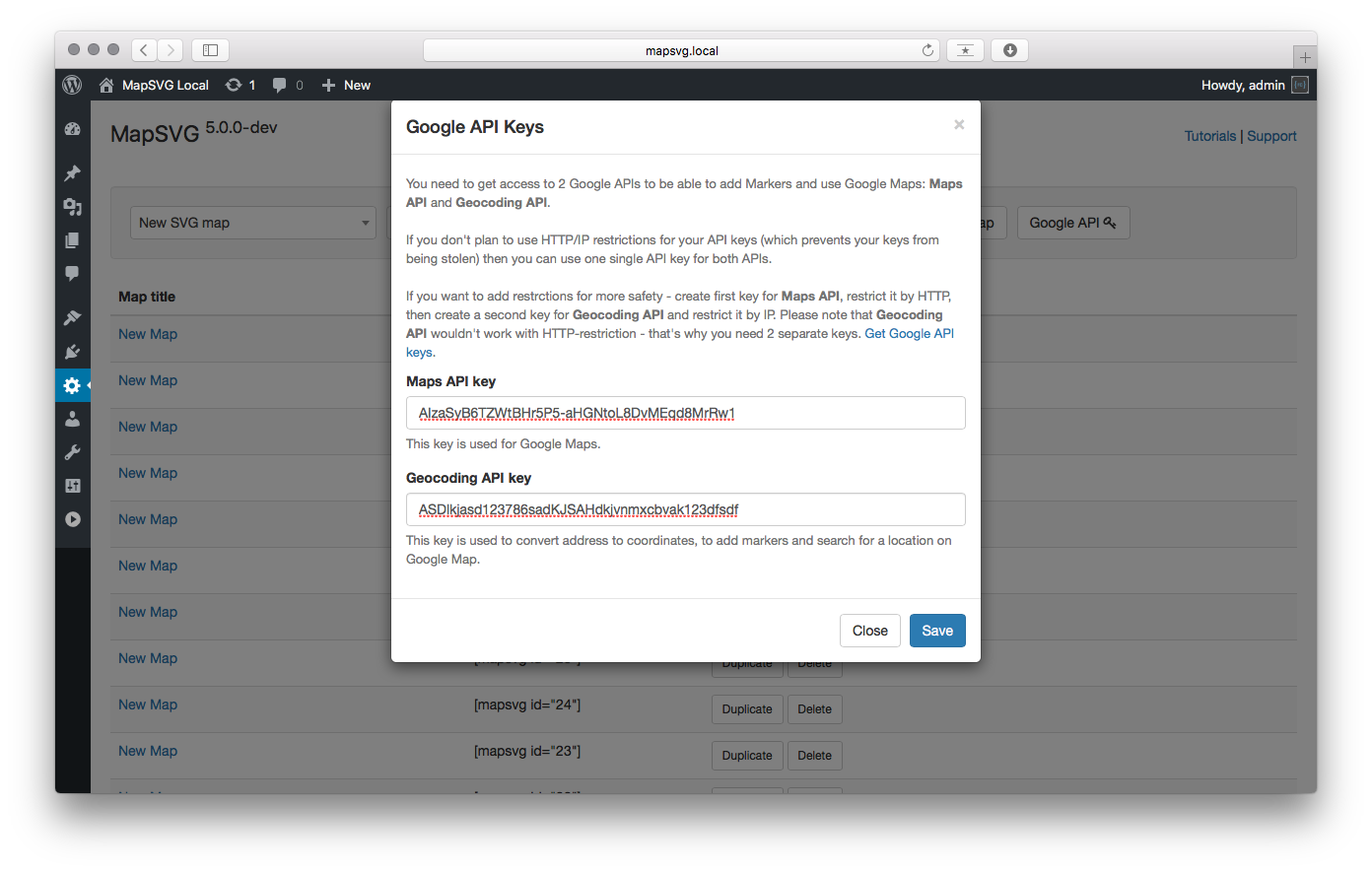 That's it! Now you can use services provided by Google.
If you get the following error after setting up the Geocoding API key: "This IP, site or mobile application is not authorized to use this API key. Request received from IP address xxx.xxx.xxx.xxx, with empty referer." — then add the IP shown in the error message to the list of IPs for the Geocoding API key.
If you did all the steps above and Google Maps are not working in MapSVG, or if you can't add markers — open Google Cloud console > Menu > API & Services > Library again. Turn off both APIs and enable them again.
Adding a clickable overlay on Google Map
The Download SVG with Google Map button on the MapSVG start screen helps you overlay interactive SVG graphics on a Google Map.
When to use
You want vector shapes (districts, floors, custom areas) aligned on top of Google Maps. MapSVG downloads a calibrated SVG that includes a Google Maps screenshot so you can draw in the correct place, then upload the file back.
Prerequisites
- Two Google API keys (see above)
- Inkscape (recommended) to edit the downloaded SVG
- SVG shapes that meet SVG file requirements
What the button does
- Downloads a calibrated SVG with a Google Maps background
- You edit the SVG (add paths with IDs and fills)
- You upload the file - static Google Maps screenshot in the background gets replaced with live Google Map and your custom graphics overlay on top.
Full tutorial
Step-by-step with screenshots: Google Map with custom SVG overlay