MapSVG map editor overview
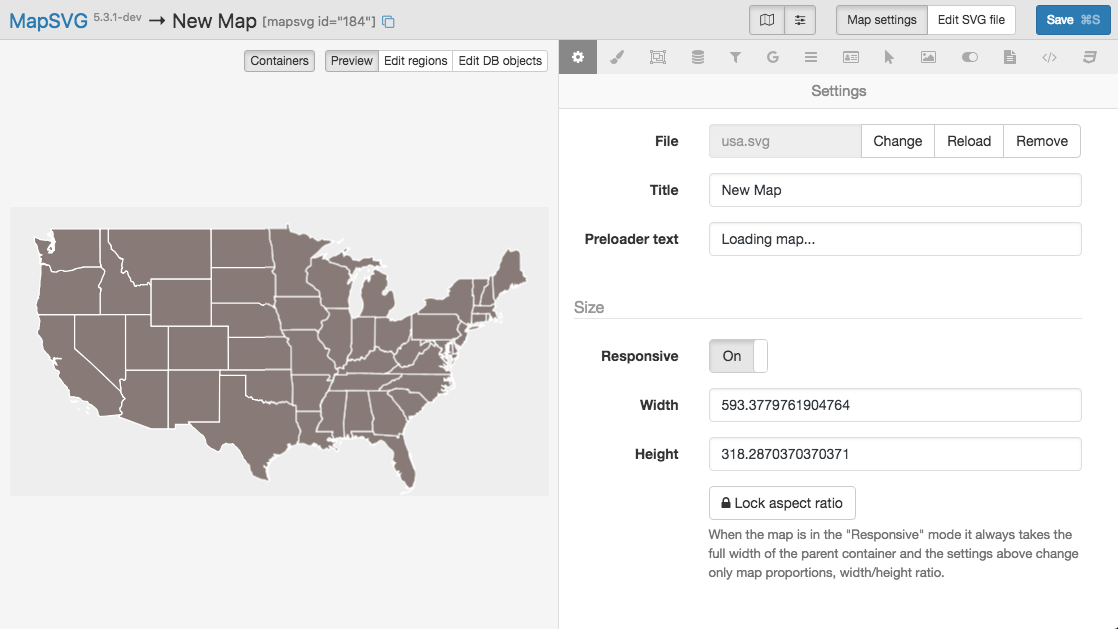
Left panel
On the left side there's a live map preview. The map has 3 modes:
- Preview: the map works exactly as on the front-end, with a few exceptions. The following 2 things don't work in the preview:
- If you set up your Regions/Markers to work as links — the links won't work in the preview
- The "Show another map" action doesn't work either
- Edit regions: when the map is in this mode, clicking a Region on the map opens Region settings on the right
- Edit DB Objects: clicking a Marker on the map opens a DB Object editor on the right
There is also a Containers button that toggles visibility of header/footer/sidebar containers in the preview.
Right panel
On the right side are the map settings. When you change something in the settings, it is immediately reflected in the live preview on the left.
Top toolbar
- Edit SVG file button: click it to edit the SVG file. MapSVG has drawing tools that let you add polygons and change IDs/titles of SVG objects. Changes are saved to the file on disk. If the file is located in the MapSVG folder, a copy is saved to the
wp-content/uploadsfolder. - Map shortcode (example:
[mapsvg id="1"]). Click the "copy" button next to the shortcode to copy it to the clipboard.